Let's get down to brass tacks and talk about some of the real challenging issues that may rear their ugly heads in your first forays into WAP programming in ColdFusion. If you're ready to start programming, you can just go to work with the things we've described so far. You'll have a great head start given that there is no documentation in the Allaire manuals on WML development, especially the specifics of doing it with ColdFusion. The rest of this book gives you a great resource for working with WML in general.
But once you begin coding WML applications, you learn that there's really a lot more to doing WML programming than just knowing WML and ColdFusion tags. As we saw in the last section, because ColdFusion was originally designed for the development of "traditional" web applications, some Studio features may not work as you would expect.
The same is true with respect to some ColdFusion programming features. You'll inevitably trip over them, and you can get around most of these problems with the right solutions. They're just not always obvious, so you need to know what to look out for. Some may feel that this section reads like a reference. If you prefer, you can use it that way. If you want to avoid the problems up front, read on.
The topics include:
q Error handling
q ColdFusion environment configuration
q Browser detection and redirection
q Form processing
We also conclude with a handful of miscellaneous concerns that don't fit into any category but are just as important (potential problems using <CFABORT>, processing URL parameters, and more).
Along the way, we include solutions to a handful of potential errors that will prevent your code from working, even if the code seems correct.
Let's start with the first big challenge – viewing errors themselves. Here's one rule that you must always remember:
ColdFusion error messages are not WML-compliant by default.
In your first attempts to use ColdFusion-driven WML templates, one major challenge is simply being able to discern the cause of the error. When your code has an error in the ColdFusion code itself, ColdFusion will indeed generate an error message that is sent to the browser for display. Sadly, ColdFusion formats the message in HTML. That's always been fine (indeed, useful), until WML development came along. The problem is that a WML browser will choke on an HTML error message as being malformed WML.
Not only can you not see the error that is causing a problem – it might instead appear that the problem is with your code coming to the browser, or with the browser or network.
The problem is exacerbated by the fact that most WML browsers don't give you much assistance in the way of showing you what has caused an error. Some try, but most leave a lot to be desired. We'll most likely have to wait for a new generation of WAP browsers before we see a solution to that particular problem – but in the mean time, how do we manage?
There is a way to make most ColdFusion template errors become more usefully reported to you and your users. You can change some (but only some) of the ColdFusion errors that arise to be viewable in WML, so that you can see them in the browser, using a feature of the <CFERROR> tag that is new in version 4.5 of ColdFusion.
First let me explain the overall use of the feature, which has been around in previous versions.
<CFERROR> has always been available to allow you to direct ColdFusion to send your users to a different – customized – error display page when an error occurred. Again, the default is to just show a plain error to the user, but <CFERROR>, when used, allowed you to modify the error display page to use your site's background colors and images, and even offer contact information for your help desk or support staff.
Unfortunately, prior to 4.5 this custom error page did not allow you to do any ColdFusion processing. It offered a pre-defined set of error information variables indicating the error detail, time, browser address, and so on which you could show to the user. But you couldn't do much else on the page: you couldn't use <CFMAIL> to send the message to your administrator; you couldn't use <CFQUERY> to log the error.
Worse for WML developers, there is no way with this approach to have the error page send the user a WML formatted message. Even though you can control what's sent to the user, it's still sent as HTML by default, and there's currently no way to change that. And since you can't put the <CFCONTENT> (or any other CF) tag on the page, you can't override that default. Things would seem hopeless.
In
ColdFusion 4.5, however, Allaire has extended <CFERROR> with a new TYPE="exception"
option. When there is an execution error, this feature can direct the user to a
page with the full power and capability of ColdFusion. As such, a WML error
page with the CFCONTENT tag would
be a good thing to create.
Here is an example of a custom WML error page that could work in version 4.5:
<CFCONTENT TYPE="text/vnd.wap.wml"><?xml version="1.0"?>
<!DOCTYPE wml PUBLIC "-//WAPFORUM//DTD WML 1.1//EN" "http://www.wapforum.org/DTD/wml_1.1.xml">
<wml>
<card>
<CFOUTPUT>
<p><b>An error has occurred in this application. Please share this diagnostic information with the system administrator<CFIF cferror.mailto is not ""> at #cferror.mailto#</CFIF>.</b></p>
<p><b>Error Text:</b> #xmlformat(cferror.diagnostics)#</p>
<p><b>DateTime:</b> #cferror.datetime#</p>
<p>
<b>Error Template:</b>
<CFIF cferror.Template is "">
(unavailable)
<CFELSE>
#cferror.Template#
</CFIF>
</p>
<p>
<b>Referrer: </b>
<CFIF cferror.httpreferer is "">
(unavailable)
<CFELSE>
#cferror.httpreferer#
</CFIF>
</p>
<p>
<b>Query String:</b>
<CFIF cferror.querystring is "">
(unavailable)
<CFELSE>
#cferror.querystring#
</CFIF>
</p>
<p>
<b>Browser: </b>
<CFIF cferror.browser is "">
(unavailable)
<CFELSE>
#cferror.browser#
</CFIF>
</p>
</CFOUTPUT>
</card>
</wml>
Now, this is not perfect. The <CFERROR TYPE="execution"> tag doesn't catch every error occurring in ColdFusion (it doesn't catch errors due to CF compilation, or "file not found" errors, to name just
a couple).
Also, the detail of the error message itself, available in the variable CFERROR.DIAGNOSTICS, is itself formatted as HTML. The best we can do is use the XMLFORMAT function (or the HTMLEDITFORMAT function prior to 4.5) to cause the HTML to be rendered appropriately, such as with > and < tags. Using either function is a kludge, since some WML browsers still may not support all the code that may be sent, but it's the best we can do.
Finally, another thing to consider is that if you don't limit what's sent to the browser in the error message displayed, it could send so much information to the browser as to choke it.
Still, doing something so that most errors are properly formatted is better than doing nothing and having none of them properly formatted.
And, of course, this error handling solution won't help if the problem isn't a ColdFusion error but instead a problem of badly formatted WML. In that case, the browser will reject it as well. How to tell the difference? It does get thorny. Just learn how to use all available error diagnostic tools, and test, test, test.
The way to use the error page shown above is to create it as a file called (for example) wml_error.cfm, saving it in your directory of WML files. This is one reason why it's a good idea to keep all your WML files separately in one directory – we don't want this page to be used when HTML files get an error. (We'll see shortly how to set up browser detection to direct pages appropriately)
To call upon this newly created error page, we'd want to direct our templates to execute the following tag at their initiation:
<CFERROR TYPE="exception" TEMPLATE="wml_error.cfm" >
This would cause any exception errors to direct the browser to our newfangled wml_error.cfm file, which would show a nice (well, acceptable) WML formatted error message. Notice that we said that we need this command executed for every page. Before you start putting that statement in each file, you should know about an available solution: the application.cfm file. Let's have a quick look at that now.
The application.cfm file is another special file (and the name is indeed specific). If this file exists in a directory, then any pages in that directory will first execute the code in that file before executing themselves. This is a useful and powerful way to cause some command to take effect for all files, without having to put the command itself into every file.
This is just what we want for our <CFERROR> command. If you create an application.cfm file in your WML directory with the following code fragment, things will be improved:
<!--- Setup to test the version of ColdFusion server currently running. --->
<CFSET version= ListGetAt(Server.ColdFusion.ProductVersion,1) & "." & ListGetAt(Server.ColdFusion.ProductVersion,2)>
<!---
Turn on use of the wml_error.cfm with new CFERROR TYPE="exception"
Before 4.5, the CFERROR TYPE="Exception" was not allowed, and won't compile.
The trick below gets it to work indirectly (if >= 4.5), while still allowing this code to be used in a 4.0 server--->
<CFIF version GE 4.5>
<CFSET type="exception">
<CFERROR TYPE="#type#" TEMPLATE="wml_error.cfm" >
</CFIF>
<!--- More tags will be offered in a later figure --->
There's actually more going on here than just the use of the <CFERROR> tag, as we have to deal with the fact that this code may be run in both 4.5 or in earlier versions.
The error-handling feature above is one example of code that should be made a part of all ColdFusion-generated WML programs. If you leave things at their default configuration, it can wreak havoc. There are a few other configuration issues that could cause trouble.
Server-side debugging information (turned on in the administrator) is used by experienced ColdFusion developers to show all manner of information about the status of the execution of a page. This isn't usually something you let end-users see, but as a developer it can be very valuable. You can see variables passed to the page (for example, form, url, cookie, and CGI variables), queries executed on the page, and more. As with the case of error handling, however, there is another important fact
to remember:
Server-side debugging information is not WML-compliant
Unfortunately, Allaire sends the debugging information in HTML format, which will cause errors on the WML browser. Fortunately, there is a solution that will prevent this error. Of course, one solution would be to turn off debugging in the administrator (see the Allaire manuals for how to do that), but if your site serves HTML pages as well, this may be an unacceptable solution.
A better approach is to handle the problem on a program-by-program basis, since there is a way to disable debugging in a given CF program. As a developer, you won't be able to see the debugging info, but at least you won't cause errors in the browser when you view the page. The tag to use is:
<CFSETTING SHOWDEBUGOUTPUT="no">
When doing WML development, you'd really want to issue this tag on all CF-generated WML pages (again, it's best placed in the application.cfm file). As this particular attribute of <CFSETTING> came out in Release 4.0, it will cause an error if used in the application.cfm file on a server running an earlier version of ColdFusion. If so, just remove it. You'll have to then turn off debugging in the administrator in order to avoid every page failing in the WML browser.
As we saw at the start of the chapter, the <CFCONTENT> tag is key to WML programming, as it's this tag that allows us to set the correct MIME type. Perhaps the greatest indignity after reading this far is that you may try even the simplest example of a ColdFusion template doing WML processing only to have it fail through no fault of your own. There are two instances when the <CFCONTENT> tag itself cannot be used.
One is a problem that you simply can't get around if you're using the free, limited functionality version of ColdFusion Server, called ColdFusion Express:
ColdFusion Express does not support the <CFCONTENT> tag.
This is a real shame, as the developers who would like to experiment with ColdFusion and WAP programming are therefore precluded from trying it using this version.
The second problem can occur even in environments with a full-featured ColdFusion Server. The ColdFusion administrator may have chosen to restrict access to the <CFCONTENT> command:
The CFCONTENT tag can be disabled by the CF administrator
As a security precaution, Allaire has enabled ColdFusion administrators to selectively disable any of a handful of tags that might be used in an inappropriate way, potentially violating security on the server. <CFCONTENT>, sadly, is one of those tags (only because it has an available FILE attribute that can be used for entirely unrelated purposes to its use described in this chapter).
Many CF administrators choose to follow the general recommendation to lock down all the tags that can be restricted, and WML developers will suffer as a result.
What makes this error even more pernicious is that it will also cause the wml_error.cfm template (that we saw earlier) to fail, since it starts with a <CFCONTENT> tag. So you may be really hard-pressed to discover what's causing the problem if your administrator has disabled the tag.
At least in the UP.Simulator, you can see the actual code (and error message) being sent to the browser. The error will be formatted in HTML, so you have to wade through the diagnostic tool. If you could display it in HTML, it would show the following:
Error Diagnostic Information
The CFContent tag is disabled.
The administrator has chosen to disable this functionality on this server unless executed from a specified directory.
There would seem to be no hope short of getting the administrator to make sure that <CFCONTENT> is turned on. However, if you look again at the last sentence in the above error message, you can see that there could be another solution. What it's saying it that (as of Release 4.5) the disabling of the restricted tags is lifted if the code executing the tag is in a directory specified by the ColdFusion administrator as being allowed to execute these restricted tags. (See the bottom of the page offered under the "Basic Security" link in the administrator.)
We may be able to take advantage of this new feature on servers that have otherwise restricted the <CFCONTENT> tag.
By default, the directory that is allowed to execute such templates using such otherwise restricted tags is the directory where the administrator files themselves are stored. Assuming the administrator code's directory has not been moved for security reasons, and your web server's root is C:\INETPUB\WWWROOT\, then the directory allowing such templates is C:\INETPUB\WWWROOT\CFIDE\Administrator.
This directory is typically (and should be) secured so as to be accessible only by someone with administrator privileges (more on that in a moment). If we can work with such a person to place a
file in that directory, we can work around the restriction of <CFCONTENT> (for our particular needs only). This is not a security hack, it's an intentional use of a new feature designed specifically for this sort of problem.
What we'd want to do is place a file in that location. The file, which we'll call do_cfcontent.cfm, would need only one line of code, our needed <CFCONTENT> tag:
<CFCONTENT TYPE="text/vnd.wap.wml">
We can then call upon that code from any CF template on our server using a special tag:
<CFINCLUDE TEMPLATE="\CFIDE\Administrator\DO_CFCONTENT.CFM">
The <CFINCLUDE> tag pulls the code in from the named file in the named directory. Because the CF administrator by default has what's known as a "mapping" pointing to the web server's root, the tag finds the named file in the named directory. (Some may wonder if we could or should execute the template using the <CFMODULE> tag instead, but it's not necessary to do so.)
Now
wherever we would have used <CFCONTENT>, we simply use the <CFINCLUDE> command
instead, as in:
<CFINCLUDE TEMPLATE="\CFIDE\Administrator\DO_CFCONTENT.CFM"><?xml version="1.0"?>
<!DOCTYPE wml PUBLIC "-//WAPFORUM//DTD WML 1.1//EN" "http://www.wapforum.org/DTD/wml_1.1.xml">
<wml>
<!--- rest of template would follow --->
As mentioned previously, this directory where the administrator allows unsecured access to tags to be executed should definitely be locked down and protected to keep people from putting just these sorts of files there without authorization. Allaire security documents do recommend that the administrator directory should be locked down.
If the directory is not locked down, see to it that this is done straight away. If it is locked down, and you're not authorized to write to it, simply explain your need to the administrator and show him/her the code that will be executed. They should have no problem placing it there for you, and you'll have solved this thorny problem.
While we're on the subject of using <CFCONTENT>, or the <CFINCLUDE> approach described above when it's needed, you may be able to make your coding just a little bit easier if you put the <CFCONTENT> tag into the application.cfm file. This way, it will be present on all CF-generated WML pages, and if there is ever a need to change it, you can change it in just one place.
One trap that you need to be aware of, if you're using <CFCONTENT> in application.cfm, is that if you have any CF templates intended to generate HTML output in the same directory, then they will no longer be viewable in your HTML browser. The <CFCONTENT> tag in the application.cfm will be sending the wrong MIME type. The HTML browser will prompt you to either save or execute the pages, since it doesn't know what to do with a file with a WML MIME type.
There is a similar problem that occurs even if you don't set <CFCONTENT> in your application.cfm. If you've used the <CFERROR> solution mentioned above, any pages located in that directory that are intended to be run in an HTML browser will—if they have an error—try to use this <CFERROR> directive. Since that error-processing file uses the <CFCONTENT> tag to send error output in WML, the HTML browser will again not know what to do with it.
One solution is:
Put CF/WML files in a directory separate from any with CF/HTML files
Another possibility is to make the <CFERROR> (and even the application.cfm) detect what sort of browser is requesting the page, and then execute tags appropriate to each type of browser (HTML versus WML). We'll see how to do that shortly.
Another risk of using application.cfm, especially adding the tags above to an existing one used to serve HTML files, is that you need to be sure that such a file doesn't send any non-WML output to the browser.
One way to ensure this is to use a <CFSETTING> option called ENABLECFOUTPUTONLY="yes".
This tag has existed for some time to ensure that pages didn't send needless amounts of white space and carriage returns to the server, where ColdFusion tags had existed on the page before rendering
it for sending to the browser. We can take advantage of it to avoid the very problem above. You'd want to turn the option on at the start of the application.cfm, so that no text from that file is
sent to the browser, and turn it off at the end, so that any text created by subsequent pages is
indeed sent to the browser.
Given everything we've covered so far, it may be worth examining an optimal development configuration for doing WML coding in ColdFusion, including an expanded application.cfm file. The recommendations are:
q Create and serve CF-generated WML files from their own directory.
q In that directory have an application.cfm file that prevents the file itself from inadvertently sending any non-WML text to the browser, sets up the WML error handling, turns off server-side debugging, and perhaps sets the <CFCONTENT> tag on for every page.
q If you're working in an environment where <CFCONTENT> is disabled, create and use the do_cfcontent.cfm file described above.
Here is an example of a standard application.cfm file that you could use:
<CFSETTING ENABLECFOUTPUTONLY="Yes">
<!--- the line above prevents this file from sending any code to the browser until the end. I have placed the comment after it to prevent even a needless carriage return being sent to the browser--->
<!--- You can choose to set the CFCONTENT here, saving the need to do it in each template. If you do so, be sure to remove it from the templates under this file's control. We've placed it at the top so that it might affect any errors arising on this page not caught by the CFERROR later.
<CFCONTENT TYPE="text/vnd.wap.wml">
If you want to use the tag here, move it out from within this comment. If you are forced to use the DO_CFCONTENT approach, move this line instead:
<CFINCLUDE TEMPLATE="\CFIDE\Administrator\DO_CFCONTENT.CFM">
The path may change in your environment. It should be wherever you placed the do_cfcontent.cfm file in the "unsecured tags directory".
--->
<!--- following tag needed only if session or application variables will be used --->
<CFAPPLICATION NAME="wml_demo" SESSIONMANAGEMENT="Yes" SESSIONTIMEOUT="#CreateTimeSpan(0,0,20,0)#">
<!--- Setup to test the version of ColdFusion server currently running. --->
<CFSET version = ListGetAt(Server.ColdFusion.ProductVersion,1) & "." & ListGetAt(Server.ColdFusion.ProductVersion,2)>
<!---
Turn on use of the wml_error.cfm with new CFERROR TYPE="exception"
Before 4.5, the CFERROR TYPE="Exception" option was not allowed. The tags and attribute existed, but the options did not. We can't even list the option if before 4.5, as the compiler will generate an error. But we can play a trick to get it to work if at least version 4.5, while still allowing this code to compile successfully in a 4.0 server
--->
<CFIF version GE 4.5>
<CFSET TYPE="exception">
<CFERROR TYPE="#type#" TEMPLATE="wml_error.cfm" >
</CFIF>
<!--- Use CFSETTING to turn off ColdFusion server-side debugging, if turned on, since it, too, is HTML that will choke a WML browser.
Before 4.0, the CFSETTING SHOWDEBUGOUTPUT attribute was not allowed, but there's no way to trick the server with this one since you can't use variables for either tags or their attributes. If you're running a release older than 4.0, simply remove the following line
--->
<CFSETTING SHOWDEBUGOUTPUT="no">
<!--- restore the setting that prevented this file sending any text to the browser. Must be done or subsequent pages will send no output to the browser unless it's enclosed in CFOUTPUT. Generally not desirable
--->
<CFSETTING ENABLECFOUTPUTONLY="no">
A common situation you'll find yourself in is when you need to create a site that serves both WML and HTML clients. The challenge is to detect the type of browser that is making a request, and
serve up content appropriate for it. In this section, we describe techniques regarding browser detection and redirection.
Fortunately, browser detection is quite easy with ColdFusion. We mentioned previously that ColdFusion provides access to several CGI variables that indicate information provided by the browser to the server. And one of the things the browser reports is the file MIME types it's capable of accepting. This is reported in the variable CGI.http_accept.
Some people recommend using the CGI variable http_user_agent instead, which reports the browser type. If you could know what sort of browser types are most common to your users, you could try to trap that and send WML browsers to a WML page and HTML browsers to an HTML page. The problem is that there are so many browsers out there, of both types, and each reports a different name in the user_agent variable! So, this is really not the best approach.
Instead, it would be more effective to use the variable CGI.http_accept. In HTML browsers, it generally looks like this:
HTTP_ACCEPT=image/gif, image/x-xbitmap, image/jpeg, image/pjpeg, application/vnd.ms-excel, application/msword, application/vnd.ms-powerpoint, */*
In WML browsers, it looks like this:
text/vnd.wap.wml, text/vnd.wap.wmlscript, application/vnd.wap.wmlc, application/vnd.wap.wmlscriptc, image/vnd.wap.wbmp
While they may appear to be very similar, there is at least one difference: the value in WML browsers includes the very MIME type we've been referring to all along: text/vnd.wap.wml. Fortunately, it's quite easy to test whether this variable contains that string. The test uses the ColdFusion contains evaluation operator, and is specified as:
<CFIF CGI.http_accept CONTAINS "text/vnd.wap.wml">
<!--- do something --->
</CFIF>
Now we just need to decide what to do when we detect the user is coming from a WML browser.
It's tempting to want to serve both HTML and WML users in a given CFM page, testing the kind of browser and sending either HTML or WML as needed on that page. If you have a site that's already built for HTML and you just want to convert it to WML processing, you might be especially tempted to do this. However, this could be challenging on a number of fronts. Not only would the programs become more complex, it's also possible that the templates you'd create for WML display will be quite different in other ways from their HTML counterparts, in terms of the kind of processing you'd do, how many records you can show to the user (and how you'd handle that), and many other possible issues. (See Chapter 7 for more details.)
Instead, it's usually better simply to redirect WML visitors right from the front of your site to the WML directory recommended above and its pages designed just for them, as described next.
If you want to transfer control from one page to another, known as "redirection", the trick is to use the <CFLOCATION> tag. The syntax for this tag is <CFLOCATION URL="some_url">, where some_url can either be a complete URL (domain, path, and file) or any valid subset of that (with an important caveat when working with WML code).
Continuing with our detection code from above, if we want to direct users to a file called wml_index.cfm, we could use the following code:
<CFIF CGI.http_accept CONTAINS "text/vnd.wap.wml">
<CFLOCATION URL="/wml/wml_index.cfm">
</CFIF>
This code looks for the file wml_index.cfm in a directory called wml, just below our web server root (inetpub\wwwroot\wml, for instance). One potential trap to be aware of when performing redirection with WML processing is when the file you're redirecting to is in the same directory or even on the same server. In that case it's typical to use just the file name in the URL of a <CFLOCATION>, leaving off both the domain and the path. But, the experience of many WML developers suggests that it's better to always use a directory path as well, even in that case. More to the point, it seems that it's best to use a path relative to the web server root. Notice how we have done that in the example above.
You could specify a full path, with the domain as well, but if the files are on the same server as each other, that's not only unnecessary but also takes up valuable space in the limited size available for WML code to be sent to the browser.
Some ColdFusion developers may be under the impression that attempting to use the directory name in the URL of the <CFLOCATION> tag will require the creation of a "mapping" in the ColdFusion administrator for that WML directory. As we mentioned earlier under using the CFINCLUDE of do_cfcontent.cfm, there is already a mapping in the administrator for the web server root directory ("/"), created by default at the installation of ColdFusion server. So, as long as you specify the directory as a complete reference from the root directory, you don't need to create a mapping. If there's a chance that the directory may move, and you may have many <CFLOCATION> tags referring to it, then creating a mapping may be wise. See the Allaire documentation for more information.
When <CFLOCATION> sends the user to the next page, it flushes any output that was being created prior to that tag. Although ColdFusion does execute any tags in the page prior to the <CFLOCATION> tag, it will not send any WML (or HTML, for that matter) to the browser. (Actually, there's one tag that will not execute as expected. If you use the <CFCOOKIE> tag to set a cookie — where cookies are supported — and then do a CFLOCATION on the same page, the cookie will not be set, for the same reasons. The tag actually creates an http header that never reaches the browser.)
Some developers are under the impression that <CFLOCATION> does some sort of client redirection, as can be done with a META "refresh" tag. It doesn't. It sends an HTTP header that causes the redirection. Any other data sent to the page prior to the <CFLOCATION> is simply never shown to the user, not even for a split second.
Finally, there may be other ramifications of using <CFLOCATION> with respect to its impact on the WML browser's history list as well as caching of the page in the browser. These aren't facets unique to ColdFusion but crop up whenever we use redirection on WML decks.
The approach described above for detecting the browser is useful, and you may consider using it on the front page of your web site so that users are directed to the appropriate page for their browser. One caveat is that the code we offered is ColdFusion code and therefore must be executed within a .cfm file. This is a dilemma if you currently have your front page being served as, say, index.html. You can't put this code in that page, unless you rename it as index.cfm.
That can be problematic in a number of ways. First, if a .cfm file has a little ColdFusion code at the top but then the rest is entirely HTML, there is a slight performance hit as the ColdFusion server does unnecessary work looking for any other ColdFusion code on the page. This may be only a minor concern, however, since ColdFusion actually caches the compilation of templates the first time they're executed (re-compiling and re-caching them whenever they're modified).
A bigger problem with renaming your index.htm to index.cfm occurs if anyone has bookmarked the page pointing at the index.htm name.
You may wonder if you could use JavaScript to do the detection and redirection instead. Sadly, WML browsers don't know how to interpret JavaScript, and WMLScript really can't be used to solve this problem.
There are a few generic form processing problems that WML developers are encountering which you should keep in mind, such as form fields not being passed to action pages. There are also some specific tricks and traps for ColdFusion developers, as well, such as how to process "multiple-value" form fields and performing form validation.
One generic form processing problem is that on some WAP gateways (and possibly some phones) form submission happens with a transcoding process where data arrives at the server encoded as: application/x-www-form-urlencoded;charset=UTF-8 – a format not currently recognized by ColdFusion. The upshot is that ColdFusion may not (again, on some browsers) convert the form fields to form prefixed variables, so you won't be able to access data posted from a WML deck back to the server. (The same thing is reported to be happening in ASP programs and Java servlets, as discussed in the bugs' page at Phone.com, at http://developer.phone.com/dev/ts/up/bugs.html.)
If this problem occurs, you can solve it by changing the form method to "get", and then the referring to the form fields not with the "form" prefix but with "url", as discussed earlier in this chapter. Some have even argued that you should just pass all form fields using method="get". The choice is yours.
We saw earlier that it's possible to allow the user to choose multiple options on a select control, by setting the multiple attribute of the <select> element to true. In this case, the choices are not passed as comma-separated values (as in HTML) but rather as semi-colon separated values. If you're not prepared for this, it can cause problems. However, before we look at the problems (and how to solve them in ColdFusion), let's see a multiple select control in action. We'll return to our earlier stock check application.
Assume the stock symbol field is a multiple select field. All we'd need to do is change the <select> element as shown below:
<CFQUERY datasource="portfolios" name="getstocks">
SELECT distinct symbol FROM clientholdings
WHERE ClientId=#session.clientid#
</CFQUERY>
<card>
<CFIF getstocks.recordcount is 0>
<p>You have no stocks to view</p>
<CFELSE>
<do type="accept">
<go href="getholdings_action.cfm" method="post">
<postfield name="symbol" value="$(symbol)"/>
</go>
</do>
<p>
Choose one of your stocks to view:
<select name="symbol" multiple="true">
<CFOUTPUT query="getstocks">
<option value="#symbol#">#symbol#</option>
</CFOUTPUT>
</select>
</p>
</CFIF>
</card>
|
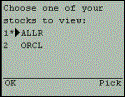
When you run code with this sort of select control, the display appears as in: |
|
Most regular Internet users will know how to select multiple options by holding down the CTRL or Shift keys while clicking values. In wireless browsers it's generally more straightforward. Notice the Pick option listed for the right button.
In the case of HTML, where multiple results are returned as comma-separated values, developers can pass these directly to SQL statements that support comma-separated values, such as the SELECT … WHERE … IN () clause. Also, there are several useful ColdFusion "list" functions that work on such comma-separated lists.
But if a WML browser presents multiple values as a semi-colon separated list, that won't work, as usual. So how do we get around these problems? We'll look at three handy solutions in this section:
q Tell the list functions to work with any separator, such as the semi-colon
q Change the list to be comma-separated instead of semi-colon-separated before processing it in SQL
There is one final problem, however – string data that is passed to SQL also needs quotes around each value. We can get around this using a relatively new and little known function, which solves that very problem – the ListQualify() function.
These three techniques are discussed in the next three sections.
ColdFusion provides a number of useful list processing functions for dealing with any sort of multi-valued list of values. These include functions to find things within the list, count items in the list, return elements from the list, add things to the list, sort the list, and more. While the default list separator is the comma, nearly all those list functions provide an option to select a different list separator, so you can also work with a semi-colon separated list of values, as is this case with a multi-valued WML form control.
We mentioned previously that in order to pass multiple values to a SQL SELECT statement using the IN clause, we need it to be a comma separated list of values. If a WML browser sends multiple values as semi-colon separated list, we can't use it. Or so it would seem. Fortunately, ColdFusion provides us with a function, ListChangeDelims(), which can convert a list from having one separator into another list separated with any other string. So, to convert our list from semi-colons to commas, we could use:
<CFSET SymbolList = ListChangeDelims(form.symbol,",",";")>
This creates a new list, which we've called SymbolList in this example, which is now a legal string to pass to the SQL statement, as in:
<CFQUERY datasource="portfolios" name="getstocks">
SELECT * FROM clientholdings
WHERE Symbol IN (#SymbolList#)
</CFQUERY>
If the values being passed from our form are numeric values, then the technique described above is all we need. But, if the values are strings, we have yet another problem.
Consider again the stock list example offered above. When submitted, it passes the stock symbols themselves (string values) as the values to be looked up on the action page. If we want to use these in a SQL IN clause, there is a problem.
If
the user selects multiple values (say, ALLR and ORCL), they arrive
as ALLR;ORCL. We can convert this to
comma-separated values easily enough using the ListChangeDelims() function, then we'd end up with a result like this: ALLR,ORCL
Unfortunately, we can't pass this list, as is, to a SQL SELECT statement with an IN clause, for example:
SELECT * FROM ClientHoldings
WHERE ClientId=#session.clientid#
AND Symbol IN ('#SymbolList#')
The problem is that the values need to be quoted. While we do have quotes around the variable holding the list to be used for the search, we'll get a failure (or invalid result) because we'd be trying to do a search for any records with Symbol having literally the value 'ALLR,ORCL'. Instead, we need a comma-separated list of values with quotes around each string, as in:
'ALLR','ORCL'
Again, ColdFusion's list functions come to the rescue – with ListQualify(). New in 4.01 of ColdFusion Server, it can convert the list to have quotes (or whatever we choose) around each value:
<CFSET SymbolList = ListQualify(SymbolList,"'",",","all")>
The function takes 4 parameters:
q The list to be converted
q The "qualifier" that we want to use to surround each value, which in our case is the single quote (but surrounded with double quotes as function parameters usually are)
q The "delimiter" that currently separates the items in the list (a comma, in our case, again enclosed in quotes)
q The "all" parameter, which says to convert all the items in the list
Now the resulting SymbolList will look like this:
'ALLR','ORCL'
which is just what the SELECT … IN clause needs.
But, sadly, we're still not done. There is actually a little problem of ColdFusion trying to help us in a way we don't need. Assume we pass the new SymbolList variable to the SELECT statement like this:
SELECT * FROM ClientHoldings
WHERE ClientId=#session.clientid#
AND Symbol IN (#SymbolList#)
There is an unexpected conversion that ColdFusion does on the string before passing it to the database. It actually converts our single quotes to a pair of double quotes. This is clearly intended to solve some unrelated problem, but it's a behavior, which produces an unintended result in this example. The statement as sent to SQL ends up looking like:
SELECT * FROM ClientHoldings
WHERE ClientId=#session.clientid#
AND Symbol IN (''ALLR'',''ORCL'')
That's not what we want either (escaped quotes, that is, two pairs of single quotes around each value). Fortunately, there is still another function that solves our problem – preservesinglequotes(). It prevents ColdFusion from "escaping" those single quotes. So our SELECT statement ends up as:
SELECT * FROM ClientHoldings
WHERE ClientId=#session.clientid#
AND Symbol IN (#preservesinglequotes(SymbolList)#)
Phew! Again, none of this would be a problem if we were passing multiple numeric values. This certainly argues for thinking twice about using strings as the values in a multiple SELECT list.
Users familiar with ColdFusion's support of "hidden field validation" will find yet another sore spot when it comes to WAP development. We can't use this approach for validating WML forms because the error page that ColdFusion creates is pure HTML. There's no way to change that, even by using <CFERROR type="validation"> to override the default validation error display. (This is a variation of the <CFERROR> tag we described earlier in the chapter.) Such an error page cannot use the <CFCONTENT> (or any other CF tag), so we can't cause CF to send any validation errors as a WML MIME type.
Now, we could almost solve the problem by using <CFCONTENT> in the application.cfm (as we mentioned earlier). But there's yet another problem – even if we setup such an error page to refer to the validation message variable available on this page (Error.InvalidFields), that variable has HTML embedded in it. (The message lines are formed as an HTML list, with <UL> and <LI> tags, which are not valid WML and therefore choke the browser.)
And we can't even use ColdFusion functions to strip those out because, again, no ColdFusion tags or functions are allowed on these limited, old style templates as pointed to by <CFERROR TYPE="Request"> and <CFERROR TYPE="Validation">. There's also no way to direct these hidden field validation error messages to the new-style <CFERROR TYPE="exception"> page. That form of <CFERROR> simply doesn't trap validation errors.
ColdFusion's hidden field validation doesn't work with WML decks: don't use it.
Along the same lines, another form processing feature that experienced ColdFusion developers may try, but won't work with WML browsing, is <CFFORM>. This tag can create JavaScript validation code, as well as optionally send some Java applets to a form to provide some alternative interface features. Keeping in mind that WML doesn't support either JavaScript or Java, using <CFFORM> is inappropriate.
Don't use <CFFORM> in WAP development.
The rest of these tricks and traps are just various ones to be aware of, especially for experienced ColdFusion developers coming into WML.
If you use a <CFABORT> tag to terminate the execution of a ColdFusion page, such as when a logical error has been detected and you want to stop processing the page, be careful that you don't leave the page being sent to the browser with incomplete WML. Consider the following page fragment, which we might use as a test on our example form action page (from above) to see if the user's input of the stock symbol form field was blank:
<wml>
<card>
<CFIF form.symbol is "">
<p>You must enter a stock symbol</p>
<CFABORT>
</CFIF>
<!--- code to be executed if they give us a symbol would follow --->
</card>
</wml>
The theory is that we don't want to execute the code following the test if the test fails. Fair enough, but the problem is we end up sending to the browser an incomplete WML page. In this example, if the test failed we'd end sending to the browser a page comprised of:
<wml>
<card>
<p>You must enter a stock symbol</p>
Notice that there are no closing </card> or </wml> elements. When <CFABORT> is executed, the template stops dead in its tracks. It doesn't just stop doing ColdFusion tags. So the closing elements, which are indeed available at the bottom of the template, are simply never sent to the browser.
The solution is to include whatever WML elements would be needed to close the page in a syntactically correct and complete way just before any <CFABORT> tag. For example, the fragment above would be more effectively written as:
<wml>
<card>
<CFIF form.symbol is "">
<p>You must enter a stock symbol</p>
</card>
</wml>
<CFABORT>
</CFIF>
<!--- code to be executed if they give us a symbol would follow --->
</card>
</wml>
While it's true that this gives the impression, on first viewing, that the closing </card> and </wml> elements are offered twice, the truth is that unless the IF condition is true, the code within it will not be executed or sent to the browser.
This is a problem that actually plagues many ColdFusion/HTML pages. However, even experienced developers don't pay much attention to it because HTML browsers are more forgiving about leaving a page with incomplete tag pairs.
Cookies are a useful feature, and between ColdFusion's tag for creating them, <CFCOOKIE>, and the easy way to refer to them (the cookie prefix), it's a great way to store and track information about the client. Unfortunately, many WML browsers and gateways don't support cookies.
If you need to support a wide range of browsers, it's best to avoid cookies.
Another problem that might rear its ugly head, if you're not prepared, is that if you intend to pass multiple field=value pairs on a URL, you must separate them with the special character & (the trailing semi-colon is important), rather than & as in HTML. This is a WML issue, not a ColdFusion one, and it may not be true in all browsers. But if the problem arises, you should be aware of it.
Suppose we create a <go> element that passes data to a ColdFusion page:
<go href="wml_display.cfm?fname=Joe&Lname=Smith">
(This is presuming a method of GET, the default if none is specified.)
This could generate an error in the browser when the page is loaded (not when the action specified by the <go> tag is performed, but when the page showing this code is itself loaded in the browser). The solution (again not a ColdFusion one) is to use the special character & to represent the ampersand character legally:
<go href="wml_display.cfm?fname=Joe&lname=Smith">
This will cause the browser to render the ampersand properly when the code is sent to the browser. Therefore, when the result is passed to the next page (wml_display.cfm in this example), it will arrive properly as a normal pair of URL variables.
As we learned way back in Chapter 4, there is a form of the <go> element that can be used to hyperlink to a card by referring to that card's id value. Recall that this form of the href attribute uses # signs:
<go href="#card2"/>
Unfortunately, if you happen to wrap <CFOUTPUT> tags around that element, the ColdFusion interpreter will throw an error thinking the # sign is the beginning of a ColdFusion variable. The solution is to escape the # signs; that is, repeat them. This way, the ColdFusion interpreter ignores them and knows you mean for the # sign to be sent to the browser. So, the example above might be coded as:
<CFOUTPUT>
...
<go href="##card2"/>
...
</CFOUTPUT>
When this is sent to the WML browser, the double # signs will revert back to a single # sign.
A similar but reverse problem will arise if you try to send to the WML browser characters that it uses for its own purposes. For example, the dollar sign character. This is used by WML to refer to its own variables. So if you try to use ColdFusion's dollarformat() function, which formats a numeric value to have a leading dollar sign and embedded commas, you'll generate a WML browser error when the page is rendered on the browser.
In this case, you need a solution whereby the WML browser will ignore the special character and simply display it. And it again involves "escaping" the character, though this time it's for the WML browser to ignore. So you could code a line such as:
<CFOUTPUT>
...
$#dollarformat(1234)#
...
</CFOUTPUT>
Notice that we have placed the $ outside the reference to the dollarformat() function (and the # signs, which are needed so the function can be evaluated within the <CFOUTPUT> tag). The leads to $$1,234.00 being sent to the WML browser, which may look strange, but when it's rendered on the WML browser, it will display as expected, as $1,234.00.
Studio contains an interactive debugger that can be used to step through the execution of ColdFusion code. Unfortunately, it's designed specifically to work with the "internal browser" feature of Studio (which is always a HTML browser) and therefore cannot be used to debug WML pages (since they cannot be executed by way of the internal browser).
While you can't use the interactive debugger, it is useful to consider that you can apply other debugging techniques to determine why a WML application is not working. For one thing, when you get errors, it may be useful to remove all but the most minimal code from the application. Sometimes you'll find that the problem isn't with the CF code you've entered but some other matter (such as failing to specify the <wml>, <card>, or <p> elements.)
You may also find it useful sometimes to run code through an HTML browser first, especially when it's being dynamically generated like we've been doing. Of course, you can't always do this since much of WML simply can't be represented with HTML equivalents. And you'd need to remove the three header tags (<CFCONTENT>, <?xml>, and <!DOCTYPE>) to keep the HTML browser from choking. But it can be very useful.
An example is when trying to debug query-driven tables, since HTML tables are very close to WML tables. You can remove the WML-specific attributes during the testing, and then add them back when things seem correct in the HTML browser. Or, you could leave the WML in and not bother trying to view the output in the browser. Just use your browser's View Source or equivalent command to look at the source code rendered. At least then, you could see what's been generated for you by ColdFusion.
In this chapter, we've seen that there's a lot of potential for creating WML applications with ColdFusion. It's a powerful environment, with even more features that we simply couldn't address. (After all, this is a book on WAP/WML programming, not ColdFusion programming).
We learned a bit about ColdFusion in general, for those new to the environment. Then we spent a good bit of time learning about the most basic types of processing we might do (forms, queries, reports, updates) and how to do that using WML generated by ColdFusion. Along the way, we offered lots of tips and solutions to commonly encountered problems.
We also covered the features of ColdFusion Studio that have been enhanced in version 4.5. You don't need to use Studio to do ColdFusion development (in fact, you don't even need to use version 4.5 of ColdFusion Server to generate WML pages). But the new Studio features (such as tag insight, tag help, tag editors, and more) can help make it much easier to enter WML (and CF and HTML) code.
Finally, we concluded with a substantial section on Techniques, Tricks, and Traps. We covered many different topics there including creating an optimal environment for error handling and dealing with various limitations that may be imposed by your ColdFusion environment configuration. We showed how to do browser detection as well as some vagaries of form processing, and a host of other miscellaneous issues.
Each of the features described in this chapter is also demonstrated in an associated set of annotated example programs. The starting point for executing these is index.cfm, which presents a scrollable list (to be run from a WML browser, of course) of each of the demonstration programs. These programs can be downloaded from the Wrox site and can be found in the chapter11 folder. The example programs offer many comments, especially features were introduced that were beyond the scope of this chapter.